
I recently built document auto-sync feature with Google Drive and iCloud for my personal hobby project — Keeplys. This blog post explains the challenges and my approach to solving them.
For context, Keeplys is a hobby project: a simple document manager running on a mobile phone that I’ve been building in my free time. When you store or scan documents via Keeplys, it organises them into a folder locally on the device.
Keeplys is local-first by default. Your documents live on your device but there is an important question: what happens if a device is lost? How do you recover your documents? It wasn’t hard to see that this was a problem worth solving.
Before building the sync feature, the main question on my mind was: how do you sync files to the cloud? I wanted to be able to scan documents on my phone, organise them locally, and have the files backed up to the cloud.
The easy answer would have been to simply upload files, or download updates once a day. This approach quickly fell short when you consider:
- What if I (or a user) edit a document on my phone while editing the same document on their laptop? How does the app resolve conflicts?
- What if the network drops mid-upload while syncing files?
- What if a user runs out of cloud storage?
- What if someone deletes the parent cloud folder used for backup (Keeplys) directly from Google Drive’s web interface?
- What about iCloud, which isn’t even a REST API?
This is a story of how I built a sync engine that handles all of this.
Implementation guiding principles
I’ve come to understand the power of setting guiding principles when exploring choices and narrowing options down. I leaned on this approach and defined a few principles that I wanted the feature to adhere to.
The app must work perfectly offline
Cloud sync is a feature and never should it be a dependency. Users should never see a loading spinner waiting for the sync.
This means:
- Documents are saved locally first, always
- Sync happens asynchronously in the background
- Pending uploads queue up and execute when connectivity returns
Cloud deletion shouldn’t interfere with what is stored locally
The most dangerous operation in any sync system is delete. Google Drive and iCloud should never silently delete local data.
If a user deletes a file from Google Drive’s web interface, it shouldn’t mirror that action locally. Instead, the document should be marked as unsynced and the user should decide what to do.
Drive agnostic
I want to leave room for extension. The first iteration supports Google Drive and iCloud, but I want to allow for other providers like Dropbox, Box, etc. To support this, the design must be drive agnostic. I designed a single sync engine that talks to a DriveProvider interface.
Documents should have observable state
Documents should have visible sync status: synced, pending, conflict, or unsynced. Users should always know what’s happening.
The domain model
To support the above, I created the following core types:
// A local document
interface Document {
  id: string;
  name: string;
  contentHash: string; // SHA-256 of the document
  modifiedAt: number;
  // ...
}

// A reference to a docume in a cloud drive or storage
interface RemoteRef {
  provider: 'google-drive' | 'apple-icloud';
  providerFileId: string;
  etag?: string; // The cloud's version identifier
}

// A queued operation
interface Operation {
  id: string; // UUID for idempotency
  type: 'create' | 'update' | 'delete' | 'move';
  localId: string;
  retryCount: number;
}

// The sync state for a provider
interface SyncState {
  provider: string;
  changeCursor?: string; // Delta token for incremental sync
  pendingOps: Operation[];
}
One key thing to note is the changeCursor. Both Google Drive and iCloud support the concept of a delta token. Delta token is a cursor that lets you ask “what changed since last time?” instead of listing every file on every sync. This is the difference between syncing 3 files and re-scanning 3,000.
The provider interface
I created a contract that every cloud provider must implement. As I add new providers (e.g. Dropbox), each one must conform to DriveProvider.
interface DriveProvider {
  id: string;
  platforms: ('ios' | 'android')[]; // iCloud is iOS-only

  // Auth
  authenticate(): Promise<AuthResult>;

  // The delta API (critical for efficiency)
  getChanges(cursor: string): Promise<ChangeResult>;

  // CRUD operations
  upload(params: UploadParams): Promise<RemoteRef>;
  download(ref: RemoteRef, destination: string): Promise<void>;
  delete(ref: RemoteRef): Promise<void>;

  // Storage quota
  getQuota(): Promise<{ used: number; limit?: number }>;
}
The platforms field is important. iCloud uses a native iOS API (the Ubiquity Container), so it simply doesn’t exist on Android. platforms gives me a way to control platform-specific availability and features.
Here’s how it’s used:
export function getPlatformProviders(): DriveProvider[] {
  return allProviders.filter(p => p.platforms.includes(Platform.OS));
}
On Android, users see only Google Drive in settings. On iOS, they see both Google Drive and iCloud.
Building Google Drive Sync Feature : REST API Cloud Provider
Starting with the Google Drive integration, I quickly learned that its implementation is very different from iCloud’s.
Scoped access
To access Google Drive, the app requests the drive.scope, which limits access to files the app itself created. The app can never see a user’s vacation photos or tax documents.
The delta API
Google’s changes.list endpoint accepts a pageToken and returns only files that have changed since that token. On the first sync, I list everything. On subsequent syncs, I might get an empty response—meaning nothing changed. This is massively more efficient than re-listing thousands of files.
Conflict detection via ETag
Every file has an etag, which acts as a version identifier. When uploading, the app sends:
PUT /upload/drive/v3/files/{fileId}
If-Match: "existing-etag"
If the etag doesn’t match (for example, if the user edited the file elsewhere), Google returns 412 Precondition Failed. The app catches this and routes the document to a conflict resolver.
Resumable uploads For files over 5 MB, I used Google’s resumable upload protocol. This means if the connection drops at 80%, the app resumes from 80%—not from 0%.
Building iCloud Sync: The Filesystem Provider
iCloud was a completely different beast. It’s not a REST API. It’s a synchronized filesystem managed by iOS itself.
The ubiquity container
iCloud gives each app a special folder called the Ubiquity Container. Files you put there are automatically synced by iOS in the background. To “upload” a file, you simply copy it into this folder:
let source = localDocumentURL
let destination = ubiquityContainerURL.appendingPathComponent("document.pdf")

try FileManager.default.copyItem(at: source, to: destination)

// iOS handles the rest
This sounds straightforward, but it’s not quite that simple. Getting entitlements set up is very different from how Google Drive works.
The config plugin
Since I’m building the app in React Native, it doesn’t know about iCloud entitlements. I had to build an Expo Config Plugin (a big thanks to Claude Code here) that:
- Enables the iCloud capability in Xcode
- Adds the correct entitlements to the app
- Exposes the ubiquity container path to JavaScript
No delta API
Unlike Google Drive, iCloud has no cursor-based delta API. Instead, I used NSMetadataQuery to watch the container for changes:
let query = NSMetadataQuery()
query.predicate = NSPredicate(format: "%K LIKE '*'", NSMetadataItemPathKey)
query.searchScopes = [NSMetadataQueryUbiquitousDocumentsScope]
query.start()
This gives live notifications when files change — more real-time than polling, but also harder to implement.
The sync engine
With providers abstracted, I built a sync engine that:
- Transforms local changes into operations
- Document saved → create or update operation queued
- Document deleted → delete operation queued
- Persists the operation queue
- Stored in AsyncStorage as a “sync journal”
- Survives app crashes and restarts
- Executes operations with retry logic
- Transient failures: exponential backoff (1s → 2s → 4s → 8s…)
- Rate limits: respect
Retry-Afterheaders - Auth failures: pause sync and prompt re-authentication
- Detects and routes conflicts
- ETag mismatch → conflict state
- User resolves: keep local, keep remote, or keep both
The sync journal
Every operation gets a UUID for idempotency. If the app crashes after uploading but before updating local metadata, it can safely replay the operation. The cloud will recognize it as a duplicate.
interface SyncJournal {
  providers: {
    [providerId: string]: {
      cursor?: string;
      pendingOps: Operation[];
      failedOps: Operation[];
    };
  };
}
The failedOps array is crucial. After five retries, I stop retrying and surface the error to the user.
Handling deletion in the cloud
Deletion has a dangerous edge case: a remote delete can destroy user data.
Imagine this flow:
- User links Google Drive
- All documents sync correctly
- User opens Google Drive on the web and deletes the Keeplys folder
- App syncs and sees files are “deleted” remotely
- App mirrors the delete locally
- User’s documents are gone forever
I handled this with a soft-delete with confirmation:
| Scenario | Behavior |
|---|---|
| User deletes locally | Remote file deleted immediately |
| Remote file deleted | Local file marked unsynced, NOT deleted |
| User confirms | Local file permanently deleted |
Handling the merge problem
All data backups are synced in a folder named “Keeplys”. One edge case I needed to handle was a case where a user links a provider and there’s already a /Keeplys folder in their cloud drive. Maybe from another device, maybe from a previous install.
I used hash-based deduplication as follows:
- List all remote files
- For each local file, compute a SHA-256 hash
- Compare local and remote files by name + hash
| Local | Remote | Action |
|---|---|---|
| File exists | Same hash | Link (no transfer) |
| File exists | Different hash | Conflict |
| File exists | Missing | Upload |
| Missing | File exists | Download |
This handles the common case of reinstalling the app on a new phone without re-uploading gigabytes of documents.
Handling sync in the background
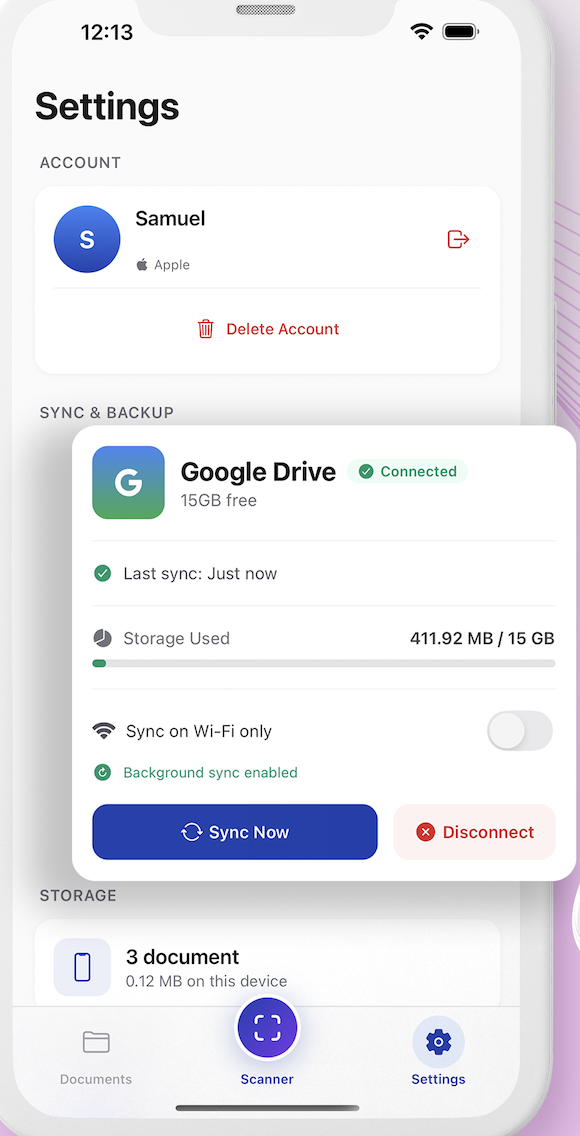
I didn’t want users to open the app just to sync. I implemented background sync using expo-background-fetch:
BackgroundFetch.registerTaskAsync('KEEPLYS_BACKGROUND_SYNC', {
  minimumInterval: 15 * 60, // iOS minimum: 15 minutes
  stopOnTerminate: false,
  startOnBoot: true,
});
On iOS, this wraps BGAppRefreshTask. On Android, it wraps WorkManager. Both respect battery optimization and network constraints.
I also added a “Sync on Wi-Fi only” toggle. When enabled, background sync checks NetInfo.type === 'wifi' before proceeding.